
If a Lightning payment fails in the Blockstream app, the app shows an error message before the transaction is sent. This guide covers the most common send errors and how to resolve each one.
Note: Lightning is currently in beta. For background on how Lightning works in the Blockstream app, see Understand Lightning support in the Blockstream app.
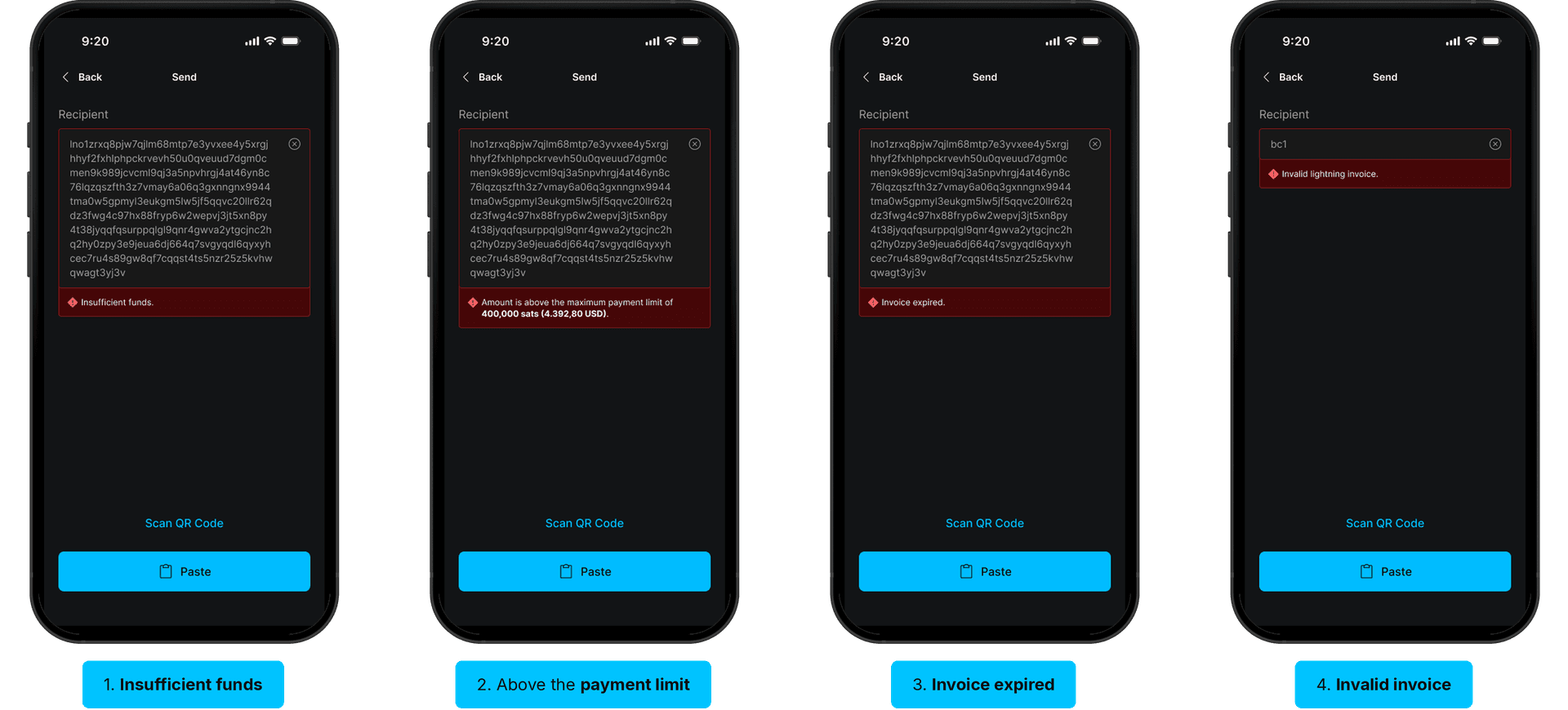
Insufficient Funds
The error "Insufficient funds." appears when your Lightning balance is too low to cover the invoice amount.
- Check your Lightning balance from the Lightning Bitcoin account screen.
- Receive more Lightning bitcoin, or lower the amount on the invoice you are trying to pay.
Amount Above the Maximum Payment Limit
The error "Amount is above the maximum payment limit of [amount] sats ([USD value])." appears when the invoice amount exceeds the maximum allowed for a single Lightning payment.
- Ask the recipient to issue a smaller invoice that fits within the displayed limit.
- If you need to send the full amount, split the payment across multiple invoices.
Invoice Expired
The error "Invoice expired." appears when the Lightning invoice you pasted has passed its expiration window. Lightning invoices use short expiration windows so the recipient knows the payment is still pending.
- Ask the recipient to generate a fresh invoice.
- Paste the new invoice and try again.
Invalid Lightning Invoice
The error "Invalid lightning invoice." appears when the text you pasted is not a valid Lightning invoice. Common causes:
- The text was truncated when copied.
- It belongs to a different network (testnet rather than mainnet).
- What you pasted is a Bitcoin on-chain address rather than a Lightning invoice.
- Verify with the recipient that they sent a Lightning invoice.
- Ask them to resend the full invoice.
- Paste it again.
Still Need Help?
The fastest way to reach support is from inside the app, because the report includes your logs. Open the app, go to the Settings tab, tap Support, enter your email and a short description of the issue, keep Share Logs checked, and tap Submit. See Submit log data for troubleshooting.
If the error you see is not covered here, you can also submit a request on the Help Center. Include the exact error text, the Blockstream app version, and the approximate time the error occurred.
Do not include your recovery phrase, PIN, or any 2FA codes. Support will never ask for them.