
A 2FA Protected account (2-of-2) adds Blockstream as a co-signer behind two-factor authentication (2FA), so a stolen recovery phrase cannot spend your funds on its own. A 2-of-3 account adds a recovery key you control on top of that, so you can spend without Blockstream at any time. This guide covers adding either account to an existing wallet in the Blockstream mobile app and turning on 2FA. For how the two account types protect you and how they compare, see How does multisig protect your wallet in the Blockstream app?
- Add a 2FA Protected Account
- Add a 2-of-3 Account
- Enable Two-Factor Authentication
- Set the 2FA Threshold and Expiry
Note: 2-of-3 accounts are available for Bitcoin only. Liquid supports the 2FA Protected type.
Add a 2FA Protected Account
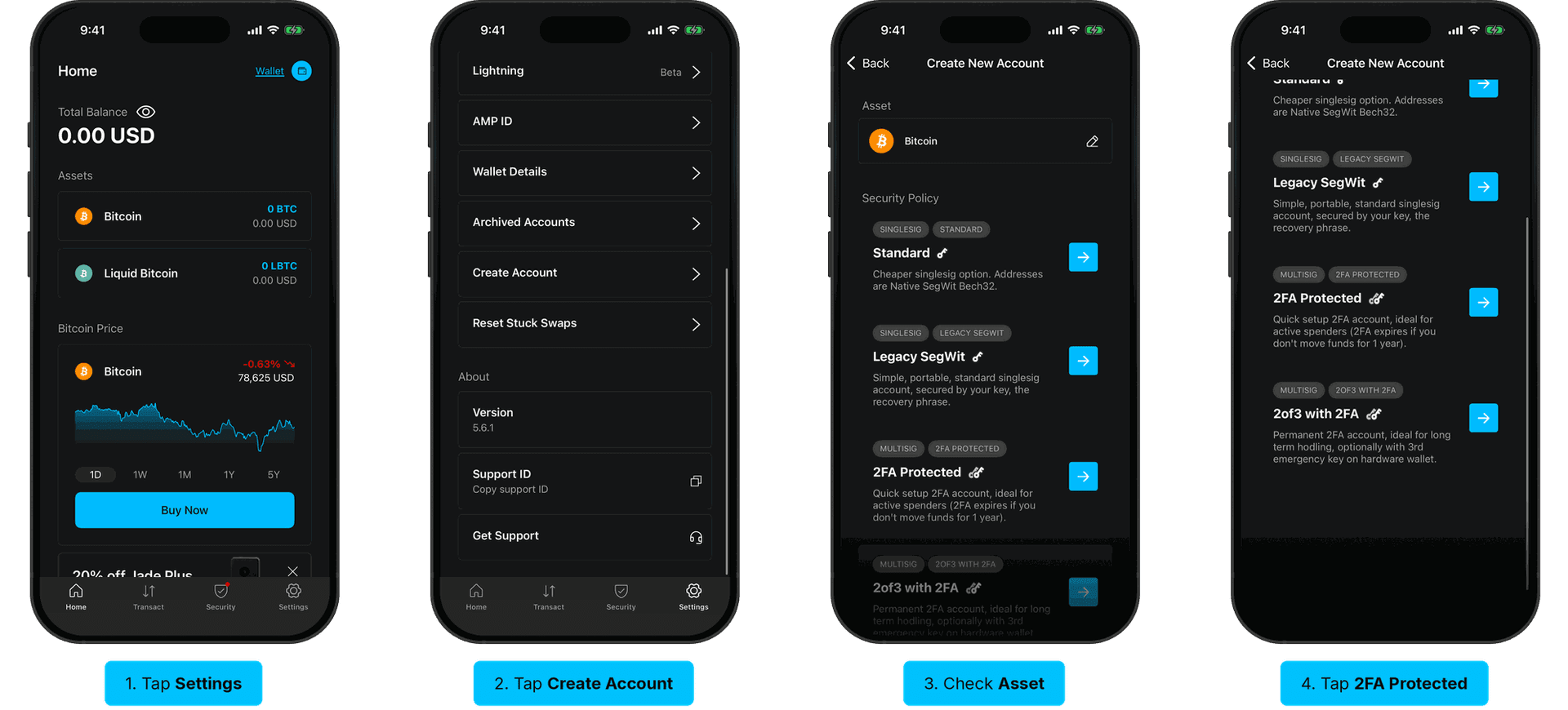
- Tap Settings in the bottom navigation.
- Under Account Settings, tap Create Account.
- On the Create New Account screen, check that Asset shows the asset you want the account for. To change it, tap the pencil icon and choose Bitcoin or Liquid Bitcoin.
- Under Security Policy, tap 2FA Protected.
The account is created and appears in your wallet. Continue to Enable Two-Factor Authentication so the second key is protected by a 2FA method.
Add a 2-of-3 Account
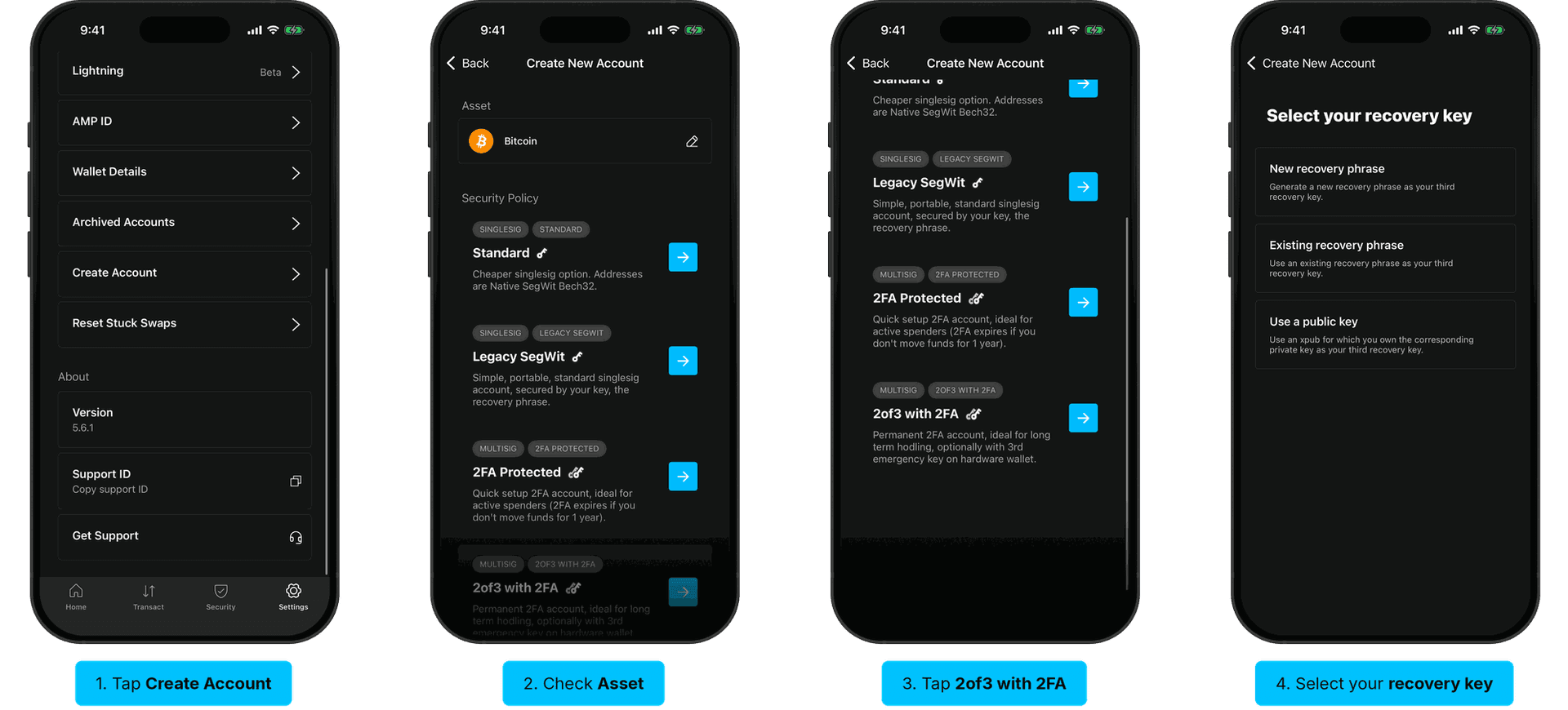
- Tap Settings in the bottom navigation, then tap Create Account under Account Settings.
- On the Create New Account screen, check that Asset shows Bitcoin.
- Under Security Policy, tap 2of3 with 2FA.
- On the Select your recovery key screen, choose how to supply your third key:
- New recovery phrase: the app generates a recovery phrase for the third key. Choose the Recovery phrase length (12 or 24 words), tap Show Recovery Phrase, write the words down in order, and tap Continue. Pass the Recovery Phrase Check by entering the words the app asks for.
- Existing recovery phrase: enter a recovery phrase you already hold. Use one that is not the recovery phrase of this wallet.
- Use a public key: enter the xpub of a key you control on the Enter your xpub screen, then tap Continue. The private key never enters the app.
The account is created and appears in your wallet. Store the third key separately from your main recovery phrase. With your main recovery phrase and the third key together, you can spend from this account without Blockstream and without 2FA.
Warning: If you lose the third key, this account behaves like a 2FA Protected account: losing every 2FA method as well means a 12-month reset before you can spend.
Enable Two-Factor Authentication
Both account types use Blockstream's key as a co-signer. Until you turn on at least one 2FA method, that key signs automatically and the account gives you no extra protection.
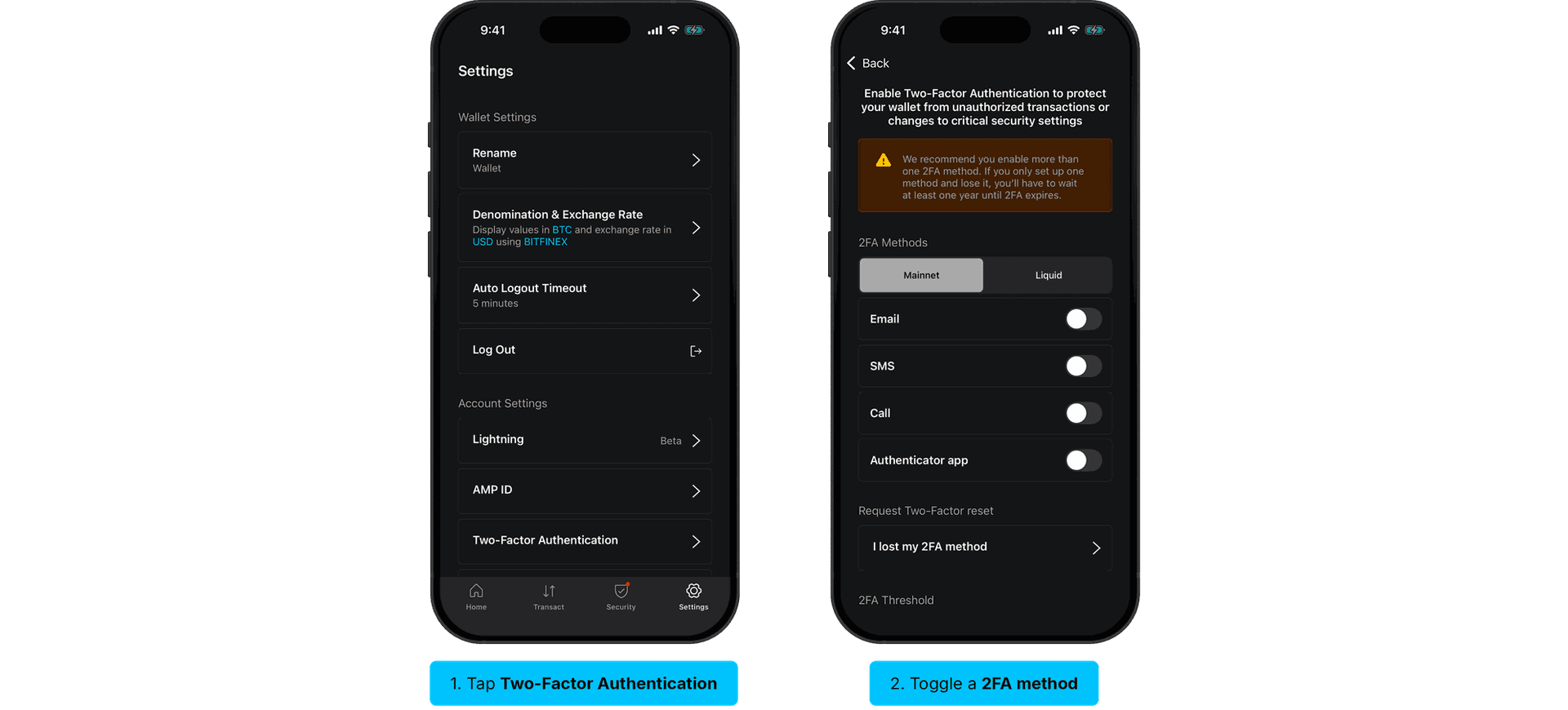
- Tap Settings in the bottom navigation, then tap Two-Factor Authentication under Account Settings.
- Under 2FA Methods, choose Mainnet or Liquid, then tap the toggle next to the method you want to enable: email, SMS, call, or authenticator app. The app prompts you for a code to confirm.
Enable at least two methods. If you lose one, the other lets you change it without a reset. For the full walkthrough, see Update 2FA method.
Set the 2FA Threshold and Expiry
Two optional settings shape how a 2FA Protected account behaves day to day. Both live under Settings > Two-Factor Authentication.
- 2FA Threshold: tap Two-Factor threshold and enter an amount. Payments below it go through without a 2FA code.
- 2FA Expiry: under 2FA Expiry, choose 6 months (25920 blocks), 12 months (51840 blocks), or 15 months (65535 blocks). This is the timelock after which funds that have not moved can be spent with your key alone, without 2FA. The app prompts you to redeposit funds approaching expiry so they stay protected. See Perform a redeposit.
2-of-3 accounts have no expiry, since your third key already lets you spend without Blockstream.
Your multisig account is set up. Funds you receive on it now need your key plus a 2FA code, or, for 2-of-3, your key plus your third key, before they can leave the wallet.