
Jade can communicate with a companion app using USB, Bluetooth, or QR codes. The instructions below will demonstrate connecting Jade with the Blockstream app, however the process will be fairly similar for any Jade-supported companion app. Note the Jade Hardware Wallet will have need to already have been initialized before connecting to App.
Tip: Please refer to your companion app's specific instructions for using a hardware wallet if you are not using Jade with the Blockstream app.
Connection Process
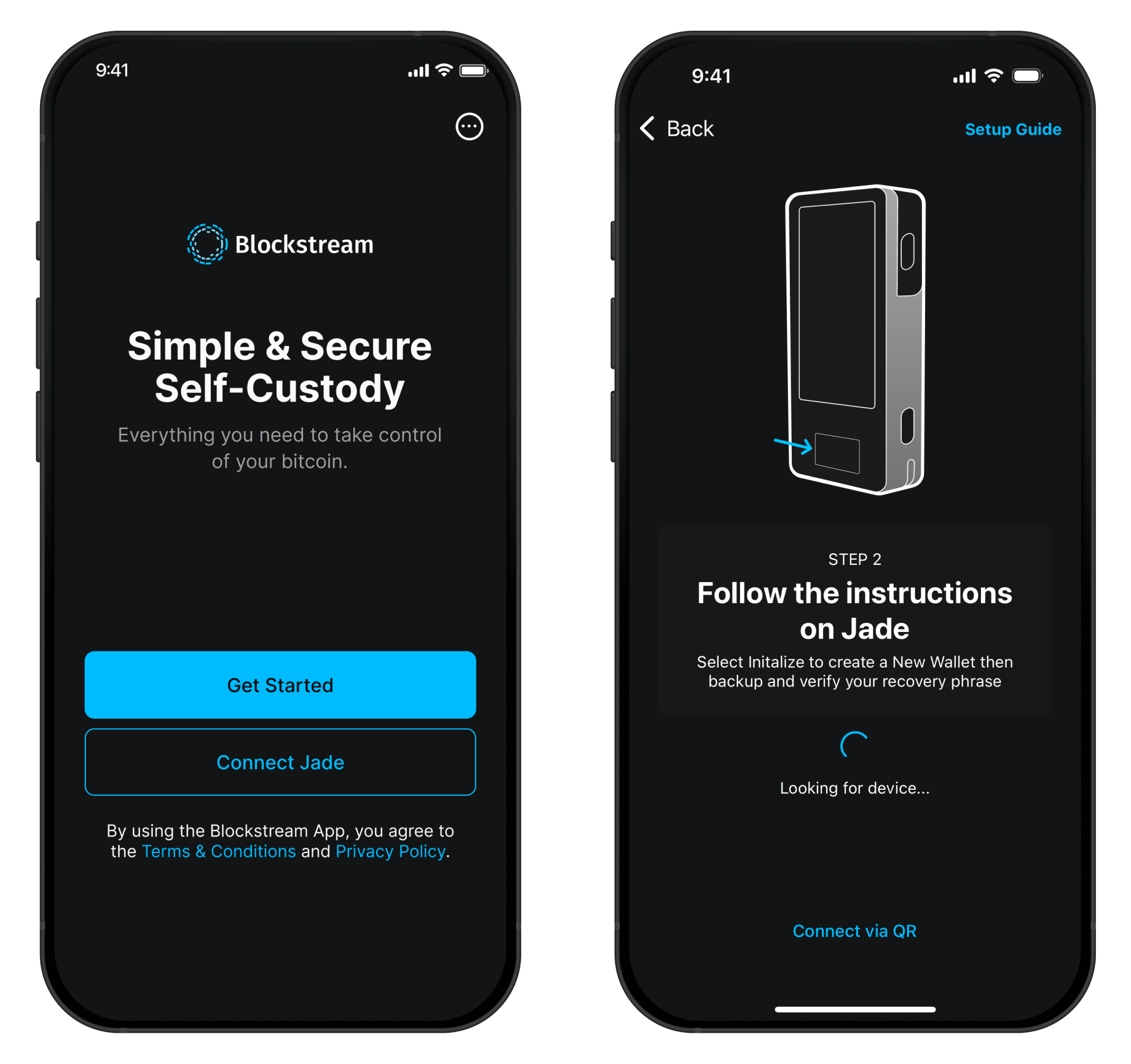
1.
Open the Blockstream app and tap Connect Jade.
2.
The app will begin searching for your Jade and will show your device after selecting a communication method on Jade, or will be automatically detected if connected via USB.
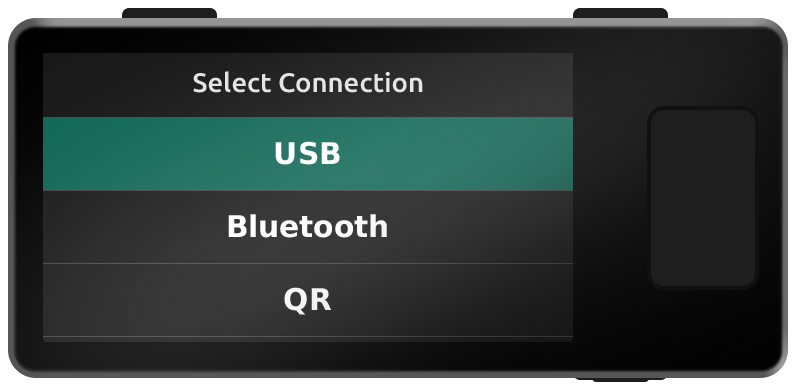
3.
On Jade, select your preferred connection method when prompted after the initial setup process:
- USB: Plug in Jade directly via USB (Android and desktop only).
- Bluetooth: Conveniently pair Jade and the Blockstream app wirelessly without the need for an additional cable (Android and iOS only).
- QR: Make sure to tap Connect via QR on the app. Follow instructions as prompted.
Note: QR mode supports Bitcoin transactions only. To send or receive Liquid assets, use USB or Bluetooth.
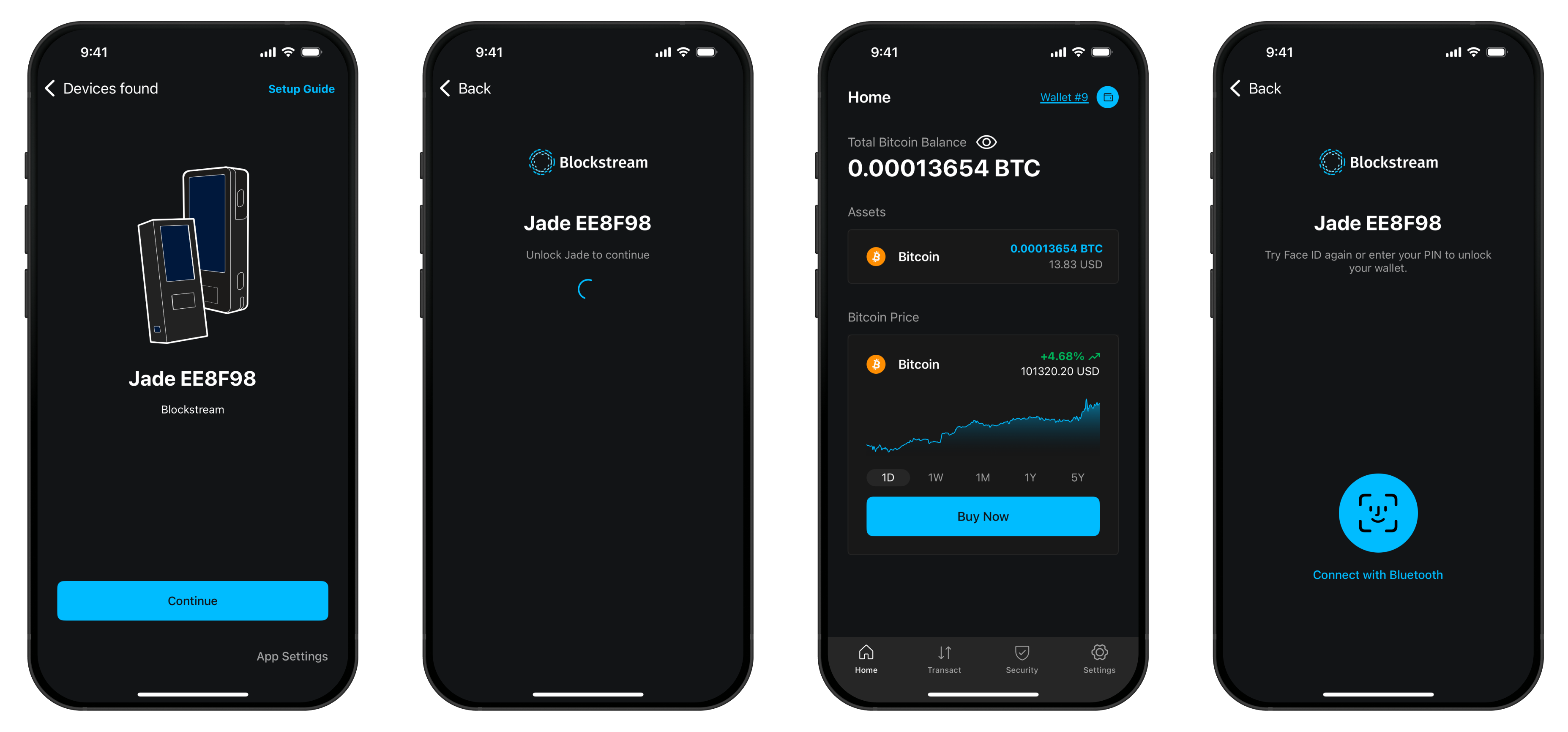
4. Select your Jade on the Blockstream app when it appears and continue by pairing your device.
Note: If you are having issues pairing with Bluetooth, make sure to follow our troubleshooting guide.
5. Follow the instructions and create a 6-digit PIN on Jade. Your PIN will be used to unlock your device upon each session. If you forget it or enter it wrong three times, you will need to restore your wallet using your recovery phrase.
6. After PIN creation, the setup process is complete.
Remember that you generate addresses and broadcast your transactions using the companion app, and you restore your wallet to other devices or companion apps using the recovery phrase.
7. After logging out, your Jade will now be shown under My Wallets. To log back in, select your device from the list.