
You can enable Lightning on a wallet secured by a Blockstream Jade hardware wallet. This guide covers the iOS flow for unlocking Lightning on a Jade-paired wallet.
Note: Lightning is currently in beta. For background on how Lightning works in the Blockstream app, see Understand Lightning support in the Blockstream app.
Before You Begin
You need:
- A Blockstream Jade hardware wallet (Jade or Jade Plus)
- The Blockstream app installed on your iOS device
- A Jade-paired wallet set up in the Blockstream app
If you have not set up a Jade-paired wallet yet, see Set up a new wallet.
Enable Lightning
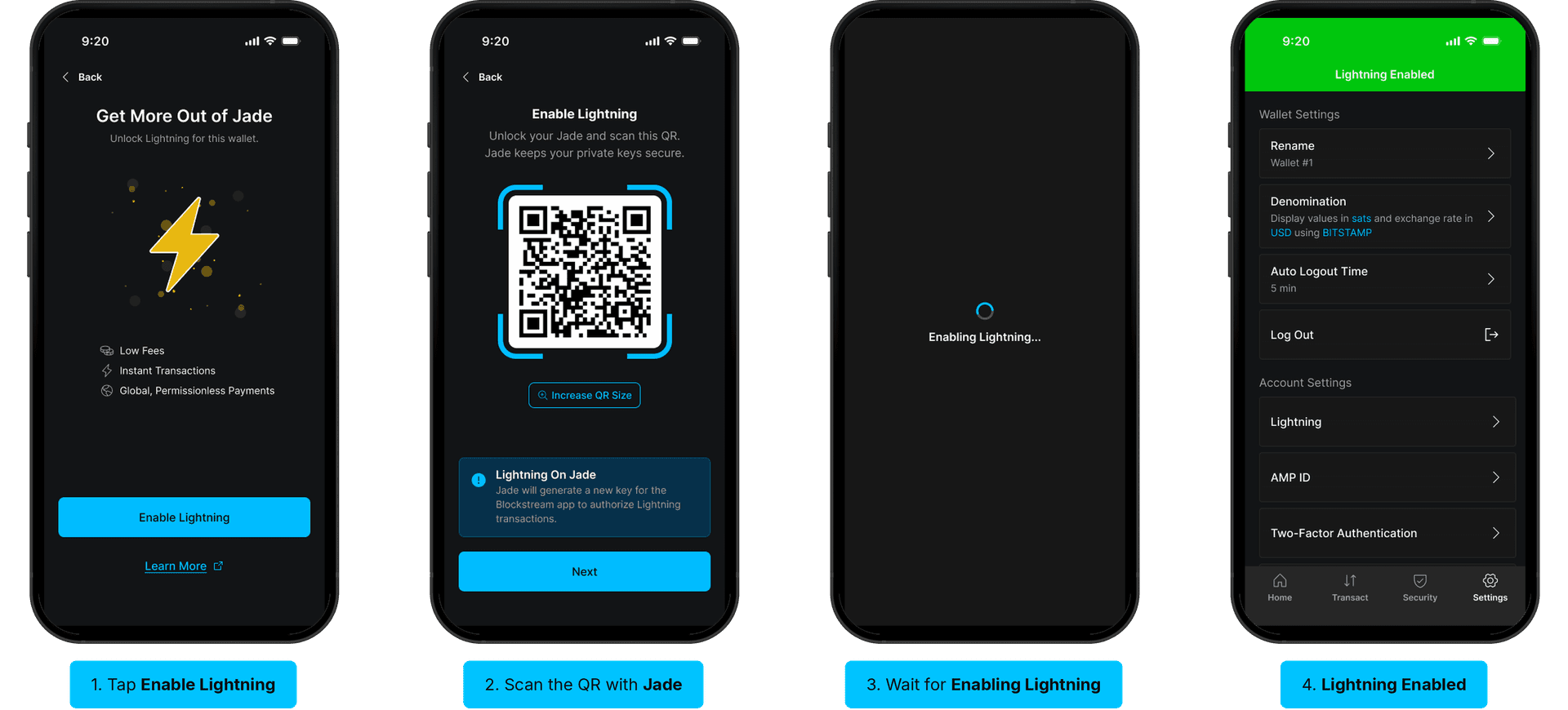
- From your Jade-paired wallet, open the Get More Out of Jade screen and tap Enable Lightning.
- Unlock your Jade and scan the QR code shown in the Blockstream app, then tap Next. On Jade, confirm Enable Lightning and select Continue to pair with the app.
- Wait for the Enabling Lightning screen to finish.
- A green Lightning Enabled banner appears at the top of the Settings screen. Lightning is now visible under Account Settings, and you can send and receive Lightning bitcoin from this Jade-paired wallet.
How Lightning Works on a Jade-Paired Wallet
When you enable Lightning, Jade generates a new key for the Blockstream app to authorize Lightning transactions. Your on-chain bitcoin remains secured by Jade, and your Lightning balance is held in an Instant Lightning account that is separate from your Jade-secured Bitcoin balance. Your existing Jade recovery phrase backs up both. For more detail, see How do Lightning accounts work with my Jade?
For details on capacity, fees, and inbound liquidity, see Understand receive capacity and funding fees on your Instant Lightning account.
Note: This guide covers the iOS flow. To enable Lightning on a wallet that is not paired with Jade, see Enable Lightning.